Admin Documentation
Room Availability Calendar
Complete reference for setting up and managing the RAC component. Covers all admin menu sections — from room configuration and timeslots to payment gateways and email templates.
Installation
Install via Joomla's Extension Manager. No Composer or external dependencies required.
Requirements
Joomla4.x or 5.x
PHP8.0 or higher
MySQL5.7 / MariaDB 10.3+
cURLRequired for payments
Basic vs Pro
Basic
Pro
✓Rooms, Timeslots, Reservations
✓Everything in Basic
✓Daily & Timeslot booking
✓Stripe & PayPal payments
✓Modal & Anima calendar
✓Events module
✓My Reservations (cancel/modify/extend)
✓CSV Import
✓Auto email notifications
✓Email Template editor
✓Admin reservation management
✓Send Payment Link to guest
Steps
1
Upload ZIP
Go to Extensions → Manage → Install. Upload com_roomavailabilitycalendar_pro_v1.x.x.zip and click Install.
2
Verify tables
After install, three tables are created: #__roomavailabilitycalendar_rooms, _timeslots, _reservations.
3
Add menu item
Create a Joomla menu item pointing to "Room Availability Calendar" component to expose the calendar on the frontend.
4
Configure options
Go to Components → Room Availability Calendar → Options to set admin email, policies, and payment gateways.
Joomla Email Configuration (SMTP)
The component sends all emails (booking confirmations, payment links, cancellations) through Joomla's mail system. On production servers (e.g. DigitalOcean), the built-in PHP mail is often blocked — configure SMTP instead.
Go to System → Global Configuration → Server tab → Mail Settings:
MailerSMTP
SMTP Hostsmtp.gmail.com (or your provider)
SMTP Port587
SMTP SecurityTLS
SMTP AuthYes
SMTP Usernameyour-email@domain.com
SMTP PasswordApp password (not your login password)
Use the Send Test Mail button at the bottom of Mail Settings to verify the connection before going live.
User Registration Settings
If you want guests to register before booking, configure these in System → Global Configuration → Users tab:
Allow User RegistrationYesMust be enabled or the Register button redirects to Login.
New User Account ActivationSelfUser activates via email link. "Administrator" requires manual approval for every account.
New User Notification MailYesAdmin receives email when a new user registers.
The Require Login option inside the component's Options (Frontend tab) controls whether guests must be logged in to open the booking form. Default is No — set to Yes to enforce login before booking.
Dashboard
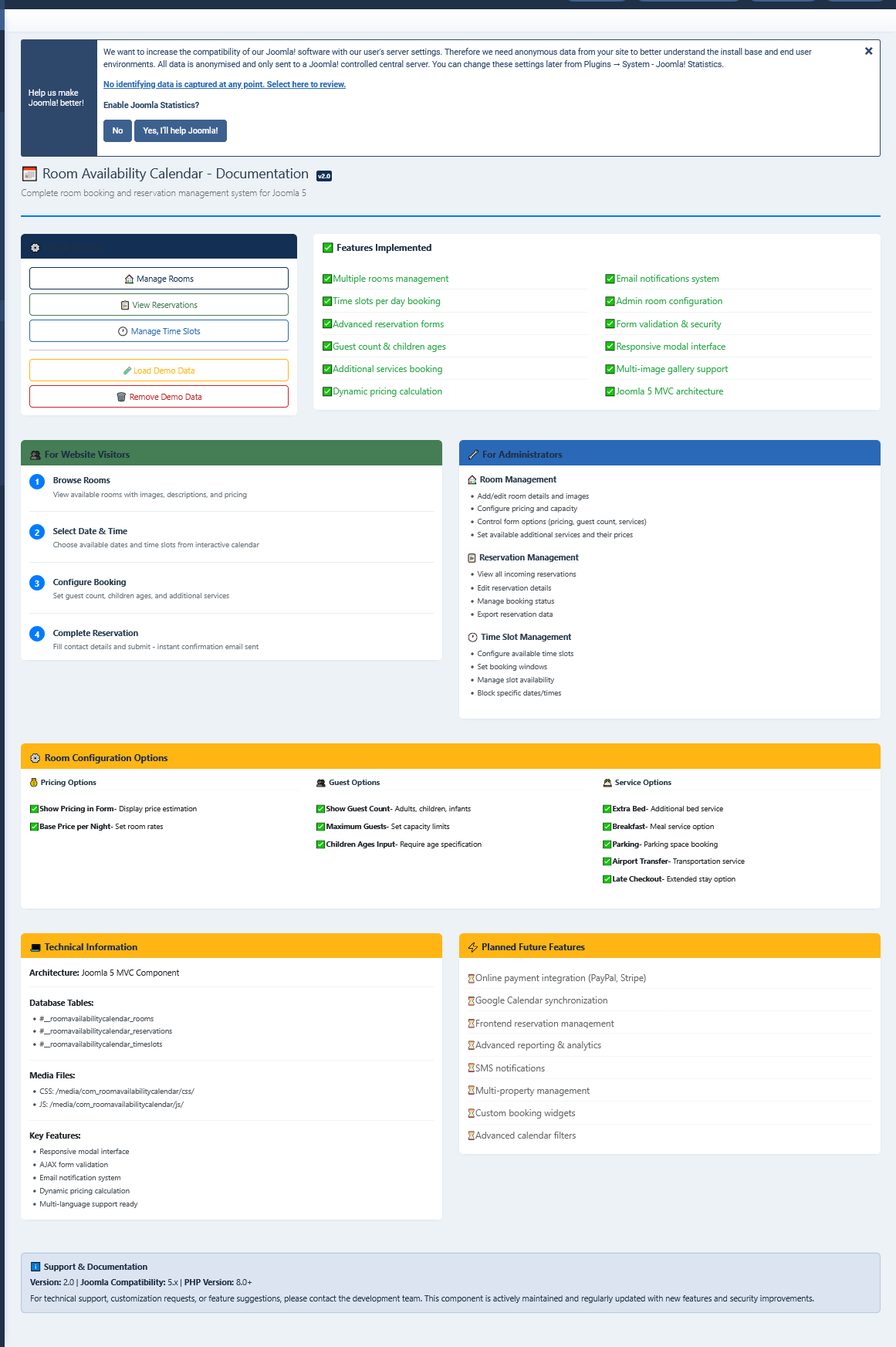
The main overview screen. Accessible from Components → Room Availability Calendar.
Dashboard — reservations overview, stats, and quick links
Total Rooms
Number of published rooms
Pending Reservations
Reservations awaiting confirmation
Today's Check-ins
Guests arriving today
Today's Check-outs
Guests departing today
Active Timeslots
Slots scheduled for today
Upcoming Events
Events in the next 7 days
✓Quick links in the dashboard toolbar let you jump directly to New Room, New Timeslot, or New Event without navigating through the submenu.
Rooms
Rooms are the core entity. Each room has its own booking type, pricing, card styling, services, and payment mode. Go to Components → Room Availability Calendar → Rooms → New.
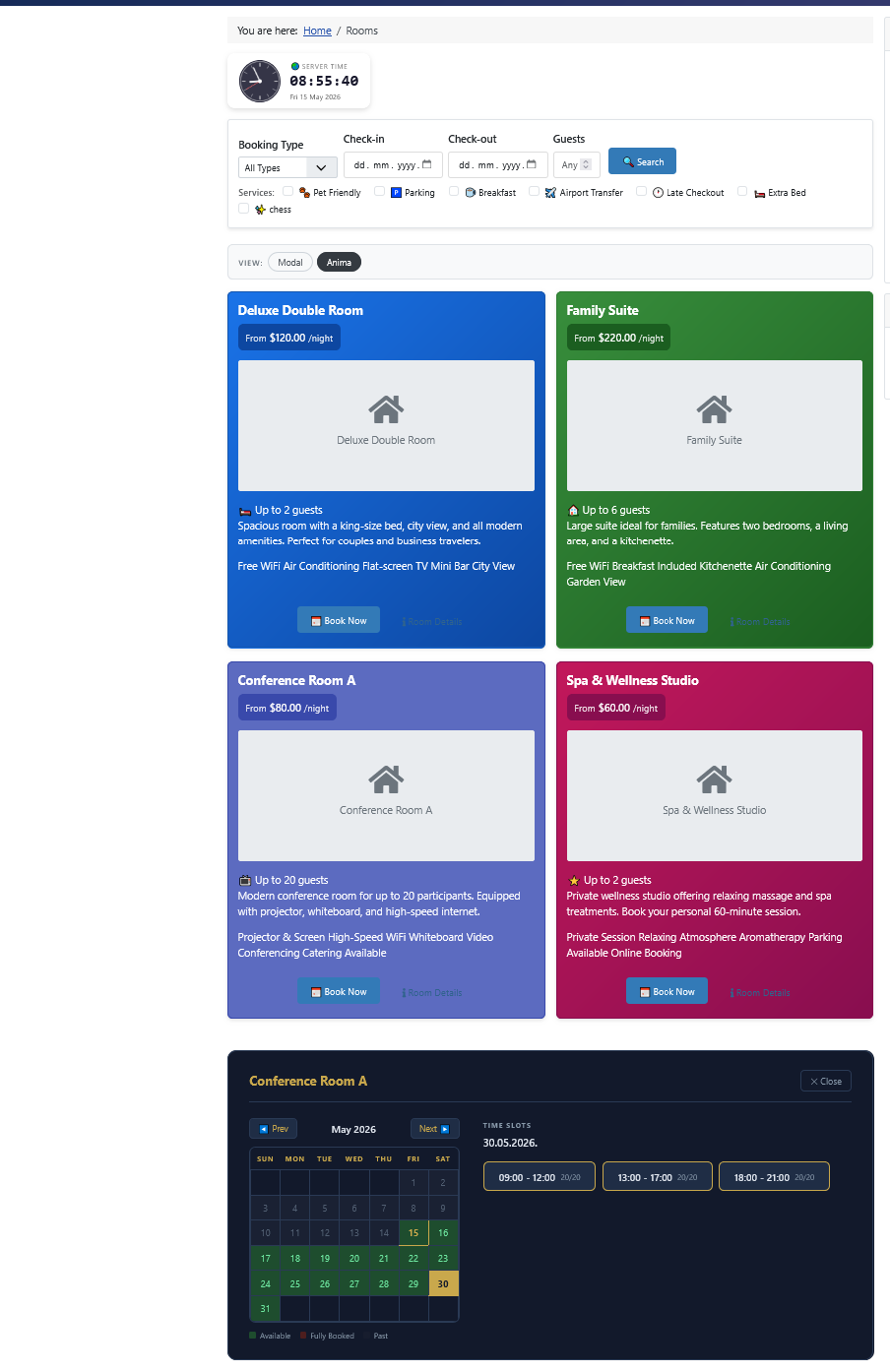
Frontend — room cards as guests see them
Details Tab
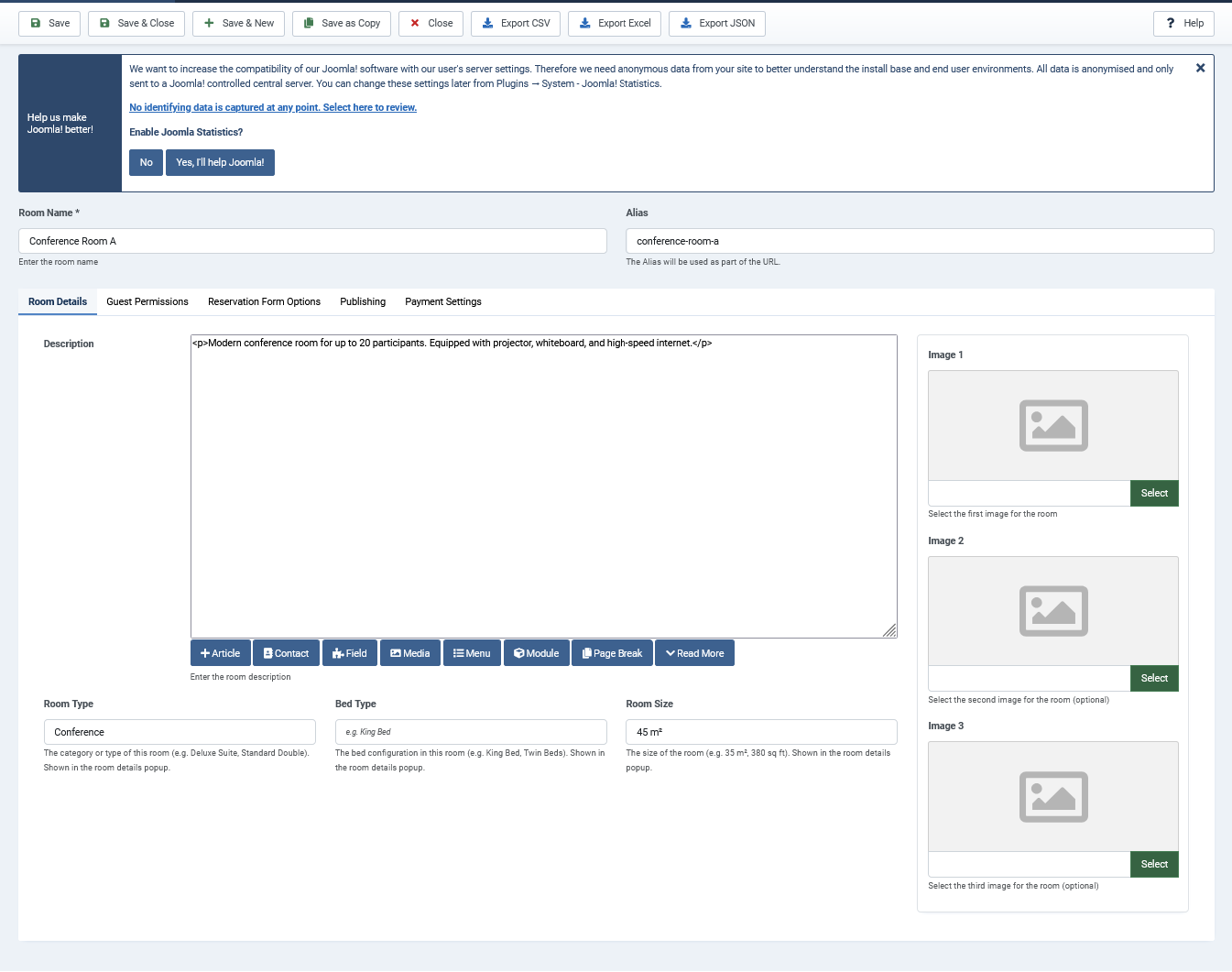
Admin → Rooms → Edit — Details tab
titletext · default: —
Room name shown on the frontend card and in all emails and reservations.
descriptioneditor · default: —
Rich text description displayed on the room card. Supports HTML via Joomla editor.
room_typetext · default: —
Informational label, e.g. "Deluxe Suite" or "Classroom A". Shown on the card.
bed_typetext · default: —
Bed configuration label, e.g. "King Bed" or "2× Single".
room_sizetext · default: —
Size label, e.g. "32 m²". Free-text, shown on card.
image1 / image2 / image3media · default: —
Up to 3 room images. Displayed in the frontend card gallery.
Reservation Options Tab
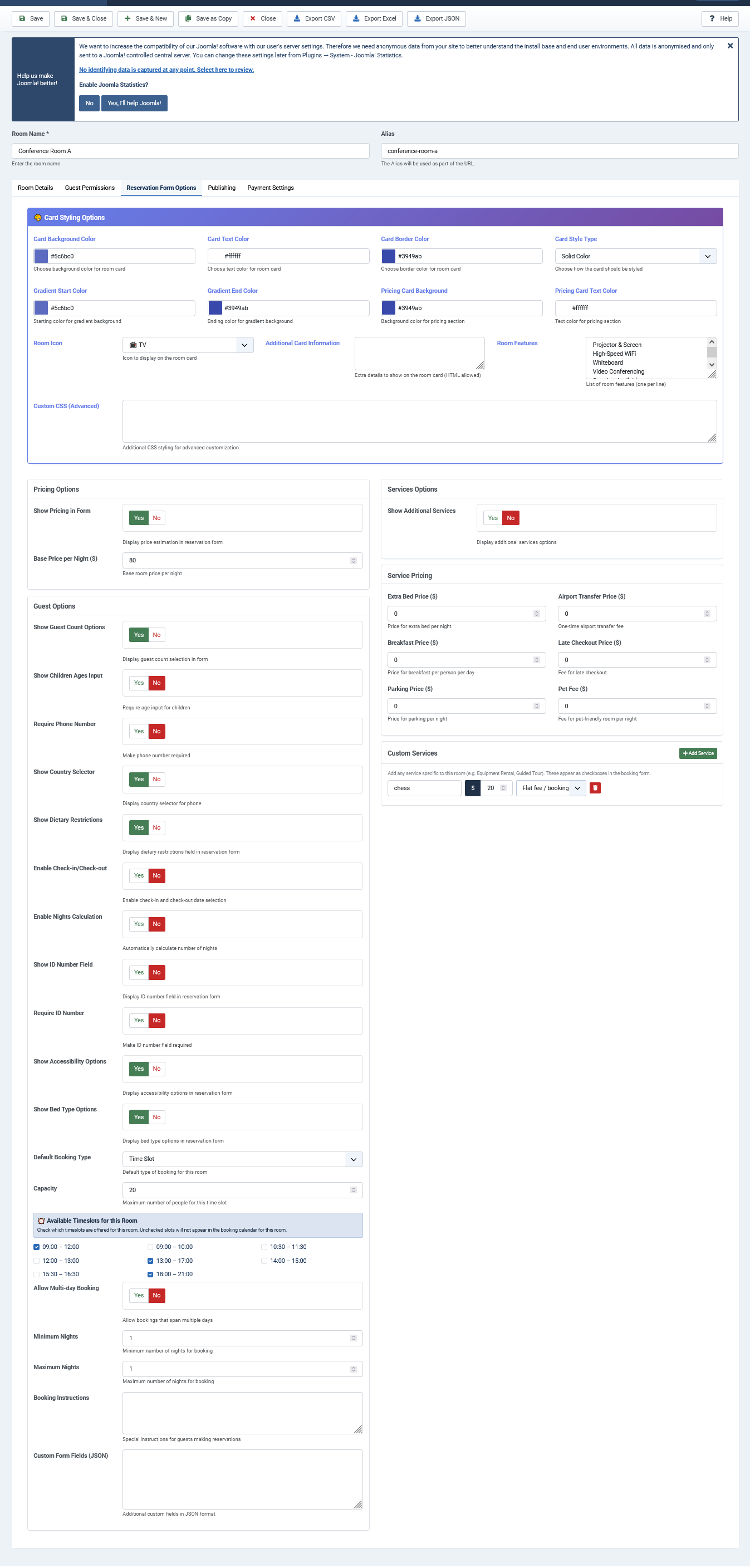
Admin → Rooms → Edit — Reservation Options tab
Booking Type — the most important setting. Controls how availability is checked and how the calendar renders.
default_booking_typelist · default: timeslot
timeslot Guest selects a date then a time slot from the available slots for that room.
daily Guest selects check-in and check-out dates. Availability is checked by date range overlap.
base_pricenumber · default: 0.00
Price per night (daily) or per slot (timeslot). The frontend JS calculates the total and submits it with the form.
show_pricingyes/no · default: Yes
Whether to display pricing in the frontend booking form summary.
capacitynumber · default: 1
Maximum simultaneous reservations for this room. For timeslot mode, limits how many people can book the same slot.
allow_multiday_bookingyes/no · default: No
For daily rooms: allow the guest to select a range of nights. If No, only single-night bookings are allowed.
min_nightsnumber · default: 1
Minimum number of nights required. The checkout field is auto-set to check-in + min_nights when the form opens.
max_nightsnumber · default: 30
Maximum number of nights allowed.
max_guestsnumber · default: 2
Maximum number of adult guests. Shown in the booking form if Show Guest Count is enabled.
show_guest_countyes/no · default: Yes
Whether to show the guest count selector in the booking form.
show_children_agesyes/no · default: Yes
Whether to show the children ages field in the booking form.
show_id_number_fieldyes/no · default: No
Whether to show a passport/ID number field in the booking form.
require_id_numberyes/no · default: No
Make the ID number field mandatory. Only applies when show_id_number_field is enabled.
show_country_selectoryes/no · default: Yes
Whether to show a country selector dropdown in the booking form.
show_dietary_restrictionsyes/no · default: Yes
Whether to show a dietary restrictions field.
show_accessibility_optionsyes/no · default: Yes
Whether to show accessibility needs field.
show_bed_type_optionsyes/no · default: Yes
Whether to show a bed type preference selector in the booking form.
booking_instructionstextarea · default: —
Optional instructions displayed to the guest at the top of the booking form.
Card Styling
card_stylelist · default: gradient
solid Flat background color. gradient Two-color gradient. border Transparent card with colored border.
card_background_colorcolor · default: #4A90E2
Primary background color for the room card header.
card_gradient_start / endcolor · default: —
Start and end colors for gradient style cards.
card_text_colorcolor · default: #FFFFFF
Text color for the card header area.
card_border_colorcolor · default: #357ABD
Border color used in border-only card style.
pricing_card_bg_colorcolor · default: #28A745
Background color of the pricing badge on the card.
card_iconlist · default: 🛏️ Bed
Emoji icon shown on the room card. Options: Bed, Home, Star, Heart, Key, Door, WiFi, TV, Bath, Sun.
card_font_familylist · default: inherit
Override the font for the room card. Leave empty to inherit from the site template.
card_featurestextarea · default: —
Room amenity list shown on the card. One item per line, e.g. WiFi, Air Conditioning, Sea View.
card_additional_infotextarea · default: —
Extra text shown in the card footer area.
card_custom_csstextarea · default: —
Custom CSS scoped to this room's card. Target .room-card-custom.
Services
Optional add-ons the guest can select during booking. Each service has a price that is added to the total.
show_servicesyes/no · default: Yes
Whether to show the services section in the booking form.
available_servicescheckboxes · default: —
Enable individual services: Extra Bed, Breakfast, Parking, Airport Transfer, Late Checkout, Pet-Friendly.
extra_bed_pricenumber · default: 25.00
Price per night for the extra bed add-on.
breakfast_pricenumber · default: 15.00
Price per person per day for breakfast.
parking_pricenumber · default: 10.00
Price per night for parking.
airport_transfer_pricenumber · default: 30.00
Fixed price for airport transfer service.
late_checkout_pricenumber · default: 20.00
Fixed fee for late checkout add-on.
pet_feenumber · default: 15.00
Fixed fee for the pet-friendly add-on.
Guest Permissions Tab
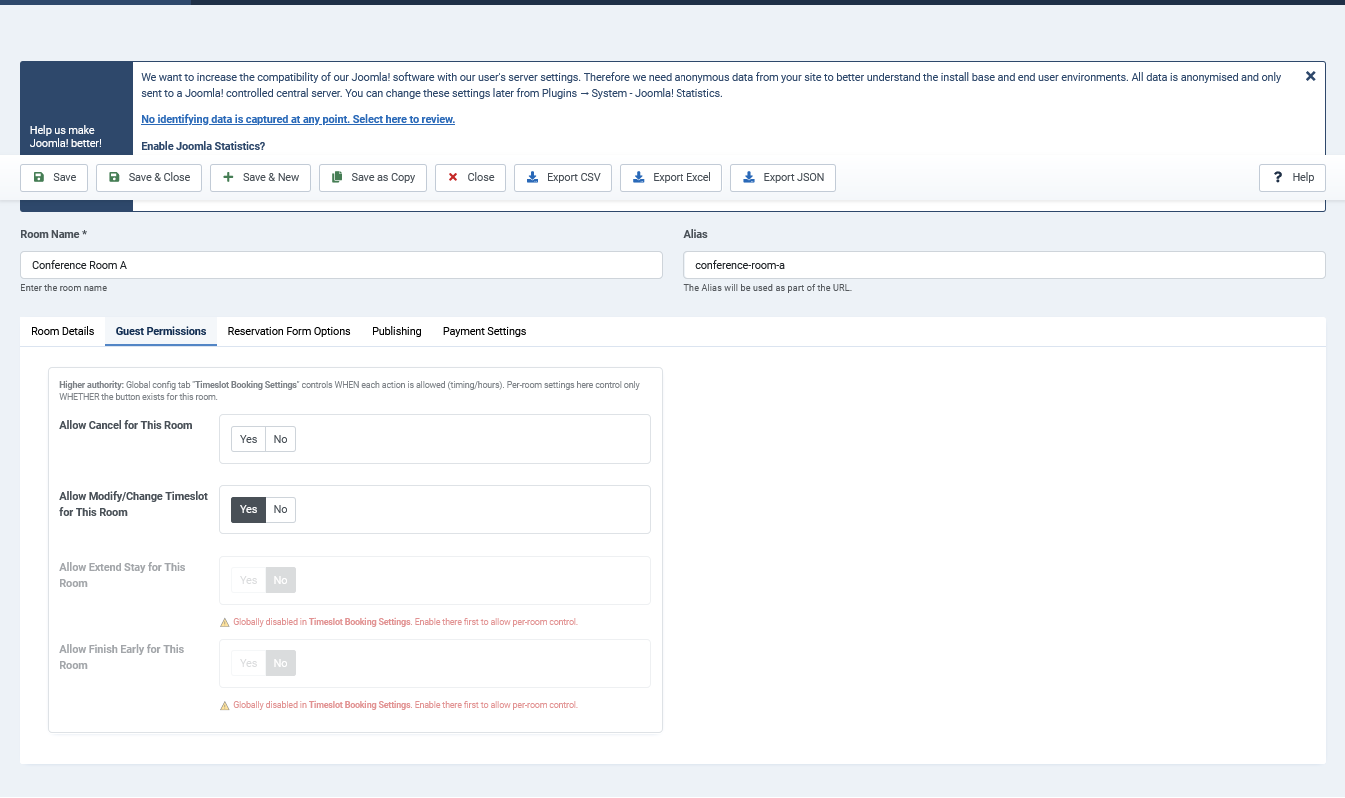
Admin → Rooms → Edit — Guest Permissions tab
Per-room overrides for what guests can do with their own reservations. These override the global settings in Component Options.
cancel_policyyes/no · default: Yes
Allow guests to cancel their reservation for this room.
modify_policyyes/no · default: Yes
Allow guests to change their check-in/check-out dates.
extend_policyyes/no · default: Yes
Allow guests to extend their checkout date (even after check-in).
finish_early_policyyes/no · default: No
Allow guests to end their stay early and mark the reservation as finished.
Payment Settings Tab
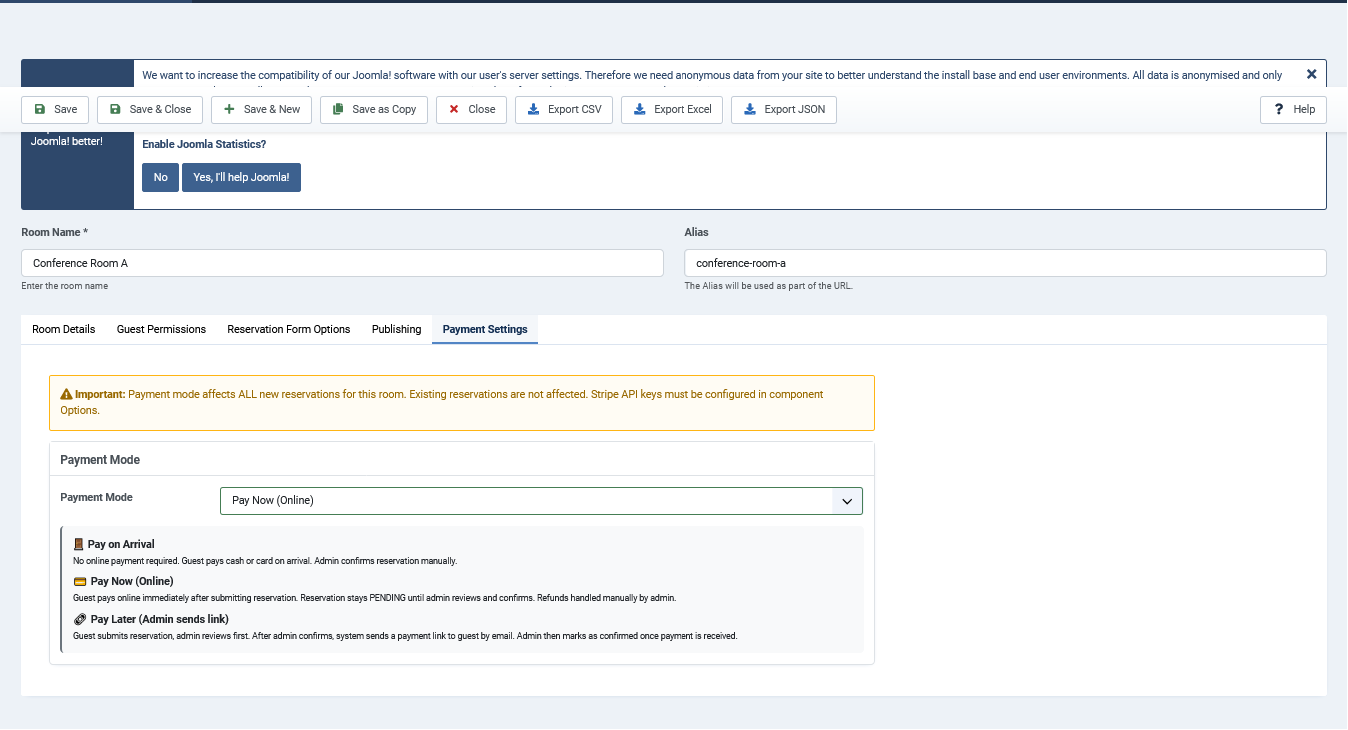
Admin → Rooms → Edit — Payment Settings tab
payment_modelist · default: on_arrival
Controls the checkout flow after the booking form is submitted.
on_arrival No payment required online. Reservation is saved with payment_status = on_arrival.
pay_now Guest is redirected to Stripe (or PayPal as fallback) immediately after booking.
pay_later Reservation is saved. Admin sends a payment link manually from the reservation edit screen.
⚠Payment gateways must be configured in Component Options → Stripe Settings (or PayPal Settings) before using pay_now or pay_later modes.
Timeslots
Time slots define bookable time windows for rooms using the timeslot booking type. Each slot is linked to one room and has its own capacity and time range.
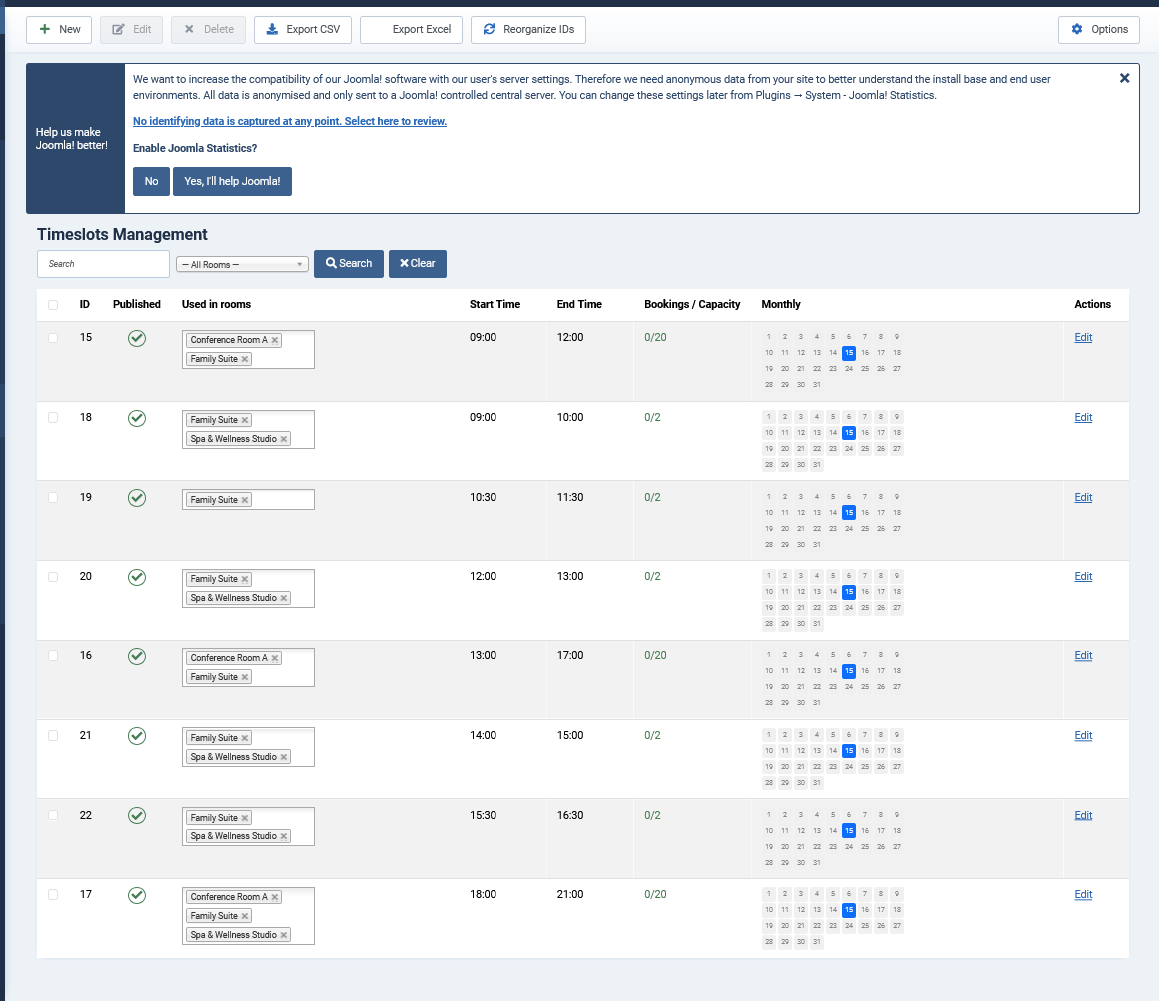
Admin → Timeslots — list of all time slots with capacity and room assignment
ℹTimeslots only apply to rooms where Booking Type = Timeslot. Daily rooms ignore timeslots entirely.
Timeslot Fields
titletext · default: —
Slot label shown in the booking form, e.g. "Morning 09:00 – 11:00".
room_idlist · default: —
The room this timeslot belongs to. A room can have multiple timeslots.
start_timetime · default: —
Start time of the slot, e.g. 09:00. Used for policy deadline calculations.
end_timetime · default: —
End time of the slot, e.g. 11:00.
capacitynumber · default: 1
How many simultaneous reservations this slot can hold. If capacity is reached the slot is shown as full and cannot be booked.
publishedlist · default: Published
Published / Unpublished / Trashed. Unpublished slots do not appear in the frontend.
How Availability is Checked
When a guest selects a date for a timeslot room, the component queries all reservations for that room on that date and counts how many are on each slot. A slot is available if:
existing_reservations_for_slot < slot.capacity
✓To make a slot appear as "by appointment only" rather than fully blocking it, set capacity to a high number (e.g. 99) and manage it manually from the Reservations list.
Reservations
Central list of all bookings. Covers both room and event reservations. Filter by status, room, date, or payment status.
Reservation Statuses
pendingDefault after booking. Awaiting admin confirmation.
confirmedAdmin has confirmed the reservation. Guest receives confirmation email.
checked-inGuest has arrived. Set manually by admin.
finishedStay has ended. Set automatically or manually.
cancelledCancelled by guest or admin. Frees up availability immediately.
Payment Statuses
unpaidPayment not yet received. Default for pay_now reservations before Stripe/PayPal confirms.
paidOnline payment confirmed via Stripe or PayPal webhook.
on_arrivalRoom uses on_arrival payment mode — no online payment expected.
link_sentAdmin has sent a payment link to the guest via email.
refundedPayment was refunded. Set manually by admin.
Editing a Reservation
Open any reservation to edit dates, status, payment status, notes, and guest details.
statuslist · default: pending
Change reservation status. Changing to Confirmed triggers a confirmation email if email notifications are enabled.
payment_statuslist · default: unpaid
Update the payment status manually. Use Refunded after issuing a refund in your payment gateway dashboard.
admin_notestextarea · default: —
Internal notes visible only to admins. Not sent to the guest.
checkin_date / checkout_datedate · default: —
Modify the stay dates directly from the admin edit form.
Send Payment Link
For rooms using pay_later payment mode, the admin can send a payment link directly from the reservation edit screen.
📧 Send Payment Link button
Appears in the sidebar when payment_status is unpaid or link_sent. Clicking it sends an email to the guest with a direct payment URL. The URL opens a page showing QR codes and clickable buttons for both Stripe and PayPal. After sending, payment_status is automatically updated to link_sent. The button label changes to Resend Payment Link if already sent.
ℹThe payment link page (/index.php?task=payment.payLaterLinks) is accessible without login — the guest only needs the link. QR codes are generated via api.qrserver.com.
Guest Self-Service Actions
Guests can manage their own reservations from the frontend My Reservations page. What they can do depends on the room's Guest Permissions settings and the global policy deadlines.
ModifyChange check-in/check-out dates. Blocked within the modify_policy_hours deadline before check-in.
CancelCancel a pending or confirmed reservation. Blocked within the cancel_policy_hours deadline.
ExtendAdd nights to the checkout date. Allowed even after check-in. No deadline restriction.
FinishEnd the stay early and mark as finished. Only available while status is confirmed or checked-in.
Email Templates
12 fully editable email templates — 6 for guests and 6 for admins. Go to Components → Room Availability Calendar → Email Templates.
Guest Templates
✉ Booking ConfirmationSent when a reservation is saved (status = pending).
✉ Reservation ConfirmedSent when admin changes status to Confirmed.
✉ Reservation CancelledSent when the reservation is cancelled.
✉ Reservation ModifiedSent when the guest modifies dates.
✉ Payment LinkSent via the Send Payment Link button. Contains {payment_link} placeholder.
✉ Event RegistrationSent when a guest registers for a timeslot/event booking.
Admin Templates
✉ New Booking AlertSent to admin_email when a new reservation is created.
✉ Cancellation AlertSent to admin when a reservation is cancelled.
✉ Modification AlertSent to admin when a guest modifies their reservation.
✉ Check-in ReminderSent to admin X hours before check-in (requires cron).
✉ Check-out ReminderSent to admin X hours before check-out (requires cron).
✉ Event Registration AlertSent to admin when a new event/timeslot booking is made.
Available Placeholders
{first_name}Guest first name
{last_name}Guest last name
{email}Guest email address
{phone}Guest phone number
{room_title}Room name
{checkin_date}Check-in date
{checkout_date}Check-out date
{nights}Number of nights
{total_price}Total reservation price
{reservation_id}Reservation ID number
{status}Current reservation status
{payment_status}Current payment status
{date}Event date (timeslot bookings)
{time_slot}Selected time slot label
{payment_link}Payment URL (pay later templates)
✓Each template has a Subject and Body field. The Body supports HTML. Click the placeholder helper buttons in the editor toolbar to insert placeholders without typing.
Events
Events are standalone bookable occurrences — similar to timeslot rooms but managed as discrete items. Use events for one-time or recurring public registrations (workshops, classes, tours).
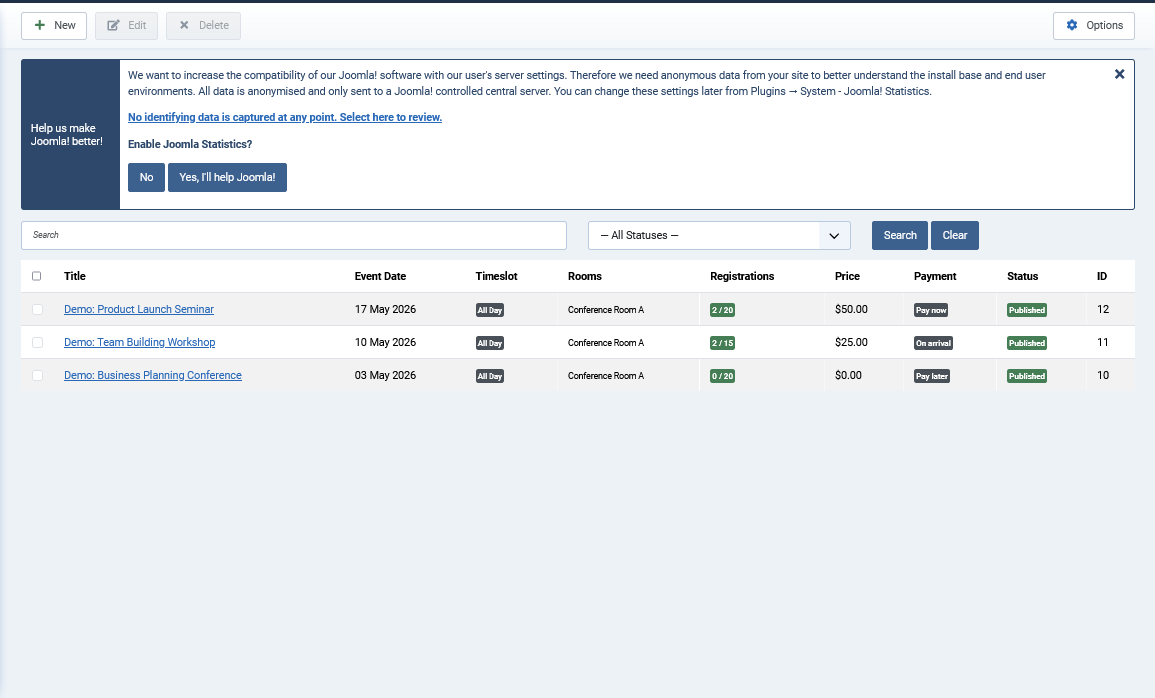
Admin → Events list
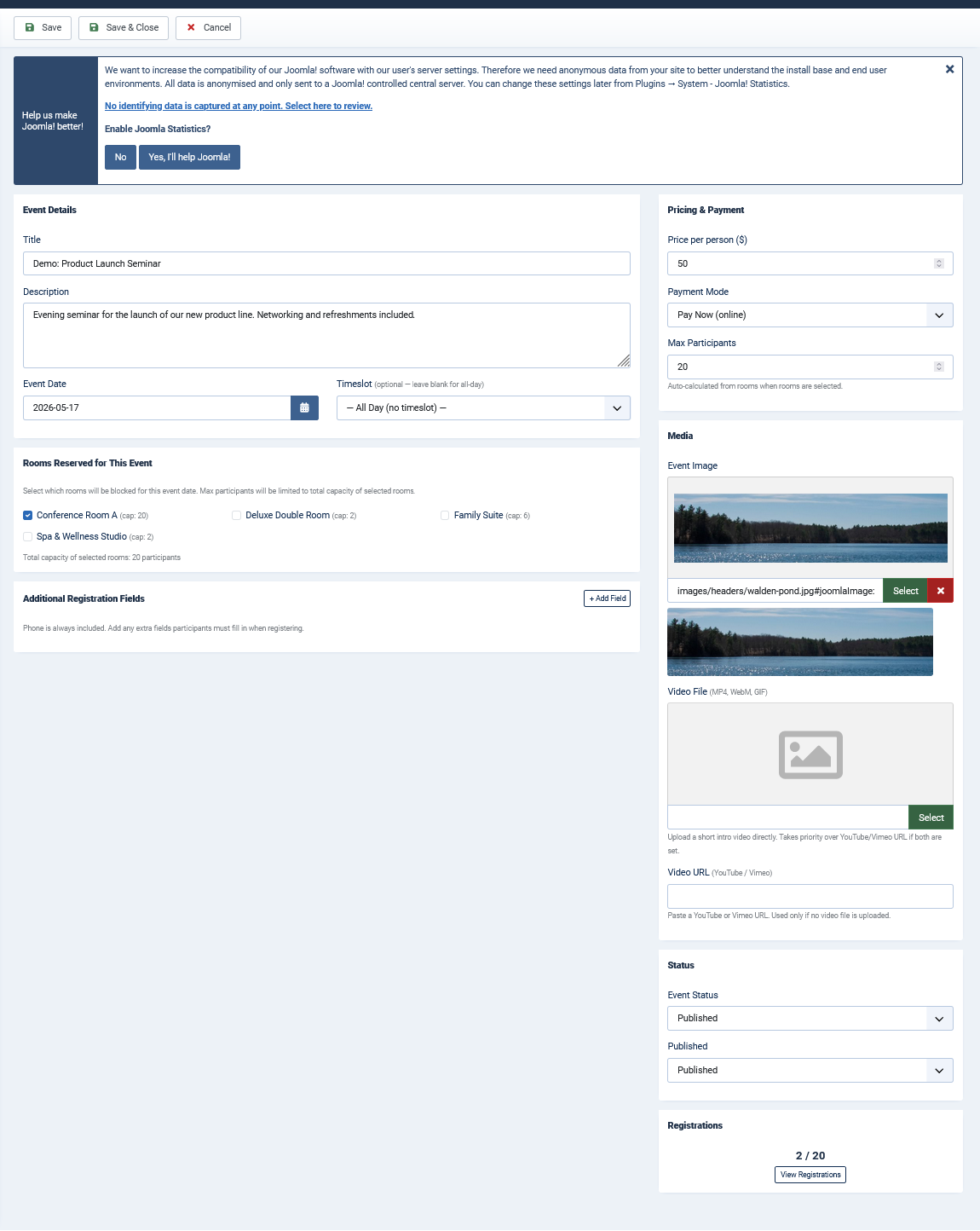
Admin → Events → Edit
Event vs. Timeslot Room
Calendar display
Yes — room card with calendar
List/card view
Repeats on multiple dates
Yes — same slot appears daily
One date per event
Capacity
Per-slot capacity
Per-event capacity
Payment
Follows room payment_mode
Can have its own price
reservation_type in DB
'room'
'event'
Event Fields
titletext · default: —
Event name shown in the frontend event list and confirmation emails.
datedate · default: —
The single date of the event.
timeslot_idlist · default: —
The timeslot this event uses. Determines the time displayed and the capacity check.
capacitynumber · default: 1
Maximum registrations for this event.
pricenumber · default: 0.00
Registration price. 0 = free event.
descriptioneditor · default: —
Event description shown in the frontend list.
publishedlist · default: Published
Controls visibility in the frontend.
Import
Bulk import reservations from a CSV file. Useful for migrating existing bookings from another system.
CSV Format
first_name,last_name,email,phone,room_id,checkin_date,checkout_date,guests,total_price,status,payment_status
John,Doe,john@example.com,+1234567890,1,2025-06-01,2025-06-05,2,320.00,confirmed,paid
Required Columns
first_namerequired
Guest first name
last_namerequired
Guest last name
emailrequired
Guest email address
room_idrequired
ID of the room from #__roomavailabilitycalendar_rooms table
checkin_daterequired
Format: YYYY-MM-DD
checkout_daterequired
Format: YYYY-MM-DD
Optional Columns
phoneoptional
Guest phone number
guestsoptional
Number of adult guests (default: 1)
total_priceoptional
Total price (default: 0)
statusoptional
pending | confirmed | cancelled (default: pending)
payment_statusoptional
unpaid | paid | on_arrival (default: unpaid)
admin_notesoptional
Internal notes
⚠The import does not check for duplicate reservations or availability conflicts. Review your CSV carefully before importing. A backup of the database is recommended.
Component Options
Global settings that apply to all rooms unless overridden at the room level. Access via Components → Room Availability Calendar → Options (or the toolbar Options button).
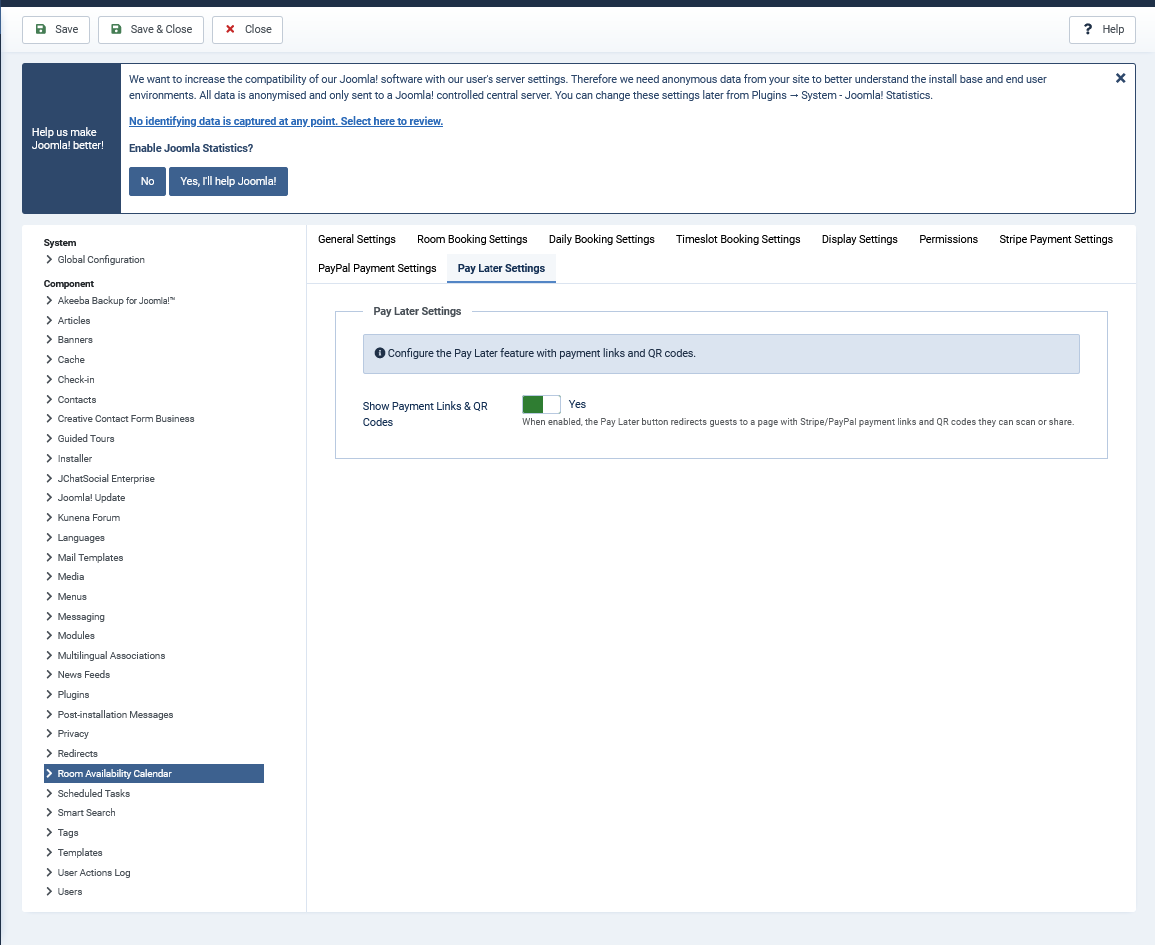
Admin → Components → Room Availability Calendar → Options
General Tab
date_formattext · default: Y-m-d
PHP date format used throughout the component. Common: Y-m-d (2025-06-01), d/m/Y (01/06/2025), d.m.Y (01.06.2025).
time_formattext · default: H:i:s
PHP time format. H:i:s = 14:30:00, h:i A = 2:30 PM.
default_capacitynumber · default: 1
Default capacity applied to new timeslots.
show_demo_buttonsyes/no · default: Yes
Show or hide demo/test action buttons in the frontend. Disable on production.
show_clock_roomsyes/no · default: Yes
Show a live clock on the rooms frontend page.
show_clock_myreservationsyes/no · default: Yes
Show clock on the My Reservations page.
show_clock_eventsyes/no · default: Yes
Show clock on the Events listing page.
Room Booking Tab
enable_room_bookingyes/no · default: Yes
Master switch. If disabled, no room bookings can be submitted from the frontend.
enable_checkin_checkoutyes/no · default: Yes
Whether to show check-in and check-out time fields globally.
require_checkin_checkoutyes/no · default: No
Make check-in/check-out time fields mandatory.
enable_guest_countyes/no · default: Yes
Show the guest count field in the booking form globally.
enable_special_requestsyes/no · default: Yes
Show the special requests/notes field globally.
required_phoneyes/no · default: Yes
Make the phone number field mandatory.
enable_id_numberyes/no · default: Yes
Show the ID/passport number field globally.
id_number_maxlengthnumber · default: 20
Maximum character length for the ID number field.
checkout_day_policylist · default: blocked
blocked The checkout day cannot be booked by another guest — the room is occupied until midnight.
free The checkout day is free for new check-ins. Use checkin_buffer_hours to add a cleaning gap.
checkin_buffer_hourslist · default: 0
Minimum gap (in hours) required between one checkout and the next check-in. Only applies when checkout_day_policy = free.
stripe_hide_postal_codeyes/no · default: Yes
Hide the postal code field in the Stripe embedded payment form.
Reservations Tab
enable_email_notificationyes/no · default: Yes
Master switch for all email notifications. If disabled, no emails are sent.
admin_emailemail · default: —
Email address that receives admin notification emails (new bookings, cancellations, etc.).
confirmation_requiredyes/no · default: Yes
If Yes, new reservations start as Pending. If No, they are auto-confirmed immediately.
min_days_advancenumber · default: 1
Minimum number of days in advance a reservation can be made.
max_days_advancenumber · default: 30
How far in the future guests can book (in days).
require_user_loginyes/no · default: No
If Yes, guests must be logged in to make a reservation.
allow_user_cancelyes/no · default: Yes
Allow guests to cancel their own reservations (daily/room type).
allow_user_modifyyes/no · default: Yes
Allow guests to modify their dates (daily/room type).
allow_user_extendyes/no · default: Yes
Allow guests to extend their checkout.
allow_user_finishyes/no · default: Yes
Allow guests to finish their stay early.
cancel_policy_hourslist · default: 24
How many hours before check-in the cancellation deadline is. After this window, guests cannot cancel.
modify_policy_hourslist · default: 24
How many hours before check-in the modification deadline is.
Timeslot Booking Tab
timeslot_allow_cancelyes/no · default: Yes
Allow guests to cancel timeslot reservations.
timeslot_cancel_policylist · default: always
always Cancel any time. pending_only Only while status is pending. never No cancellations.
timeslot_cancel_hourslist · default: until start
Deadline before the slot's start time within which cancellation is allowed.
timeslot_allow_changeyes/no · default: Yes
Allow guests to reschedule to a different timeslot.
timeslot_change_policylist · default: before_start
When slot changes are allowed: before the slot starts, pending only, or never.
timeslot_change_hourslist · default: until start
Deadline before the slot's start time within which rescheduling is allowed.
timeslot_allow_finishyes/no · default: No
Allow guests to mark their timeslot reservation as finished.
timeslot_finish_policylist · default: during_slot
When guests can finish: only during the slot window, or never.
Display Tab
booking_display_modelist · default: modal
modal Booking form opens as a popup overlay when the guest clicks a date.
anima Booking form slides open inline beside the room list (no popup).
calendar_themelist · default: default
Visual theme for the calendar: Default, Dark, Blue, Green, Red.
first_daylist · default: Monday
First day of the week in the calendar grid: Monday, Sunday, or Saturday.
show_calendar_headeryes/no · default: Yes
Whether to show the month/year header above the calendar grid.
show_week_numbersyes/no · default: No
Show ISO week numbers in the leftmost column of the calendar.
allow_user_theme_switchyes/no · default: No
Show a theme switcher to guests so they can change the calendar color.
allow_user_display_mode_switchyes/no · default: No
Show a Modal/Anima toggle button to guests.
Stripe Settings Tab
⚠Keep Stripe Test Mode enabled while testing. Switch to No only after verifying the full payment flow with real cards.
stripe_enabledtoggle · default: No
Enable Stripe as a payment gateway.
stripe_secret_keytext · default: —
Stripe Secret Key (starts with sk_live_ or sk_test_). Found in Stripe Dashboard → Developers → API Keys.
stripe_publishable_keytext · default: —
Stripe Publishable Key (starts with pk_live_ or pk_test_). Used for the embedded card form.
stripe_webhook_secrettext · default: —
Webhook signing secret from Stripe Dashboard → Developers → Webhooks. Required for payment confirmation via webhook.
stripe_currencylist · default: USD
Currency for Stripe charges: USD, EUR, GBP, RSD.
stripe_test_modetoggle · default: Yes
When enabled, uses Stripe test keys. Payments are simulated — no real money is charged.
PayPal Settings Tab
paypal_enabledtoggle · default: No
Enable PayPal as a payment gateway.
paypal_client_idtext · default: —
PayPal Client ID from the PayPal Developer Dashboard.
paypal_client_secrettext · default: —
PayPal Client Secret. Keep this private — never expose it in frontend code.
paypal_webhook_idtext · default: —
Webhook ID from PayPal Developer Dashboard → My Apps → Webhooks.
paypal_currencylist · default: USD
Currency for PayPal charges: USD, EUR, GBP, RSD.
paypal_test_modetoggle · default: Yes
Use PayPal Sandbox. Disable only after verifying the full payment flow.
Pay Later Settings Tab
show_payment_qrtoggle · default: No
When enabled, the payment link page shows QR code images for both Stripe and PayPal payment links. Guests can scan the QR code with their phone instead of clicking the link.
Room Availability Calendar · Darius Design · v1.5